Upfirst review: inside the AI receptionist we rank first, from sign-up to settings
We signed up for Upfirst's 14-day trial with this site's own details and recorded what happened: the setup wizard, what the agent learned from our pages, the transfer rules, the integrations and the prices shown inside the app.
How we got these screenshots. We signed up for Upfirst's 14-day trial on 16 October 2026 with this site's own details, no card, and went through the whole setup as any owner would. Upfirst did not know we were reviewing it and has not paid for this page; the phone numbers in the images are blurred. We have not placed test calls yet; when we do, the results go here. Links to Upfirst may earn us a commission (disclosure).
What Upfirst is
Upfirst is an AI receptionist for small businesses: a phone number in its cloud that answers calls with an AI voice, books appointments, takes messages, texts callers links and transfers the calls you want to take yourself. It is the service we rank first on our home page, for its per-call pricing and for putting booking, transfers, texting and recordings on every plan. This page shows what you get when you sign up, screen by screen.
- Job
- Answers your business line 24/7; books, takes messages, texts, transfers
- Price
- $24.95 / month for 30 calls up to $299.95 for 600; extra calls $1.50 down to $0.70 (seen in the app)
- Trial
- 14 days and 100 calls, no card (seen in the app)
- Not billed
- Spam, blocked numbers, and callers who say nothing or hang up within 15 seconds
- Integrations
- Zapier, Make, Google Calendar, Outlook, Calendly, Acuity, Square Appointments, Clio
- Setup
- Seven steps; the agent read our website and wrote its own knowledge, caller questions and text messages
The sign-up, step by step
Setup is a seven-step wizard: Basics, Training, Knowledge, Questions, Voice, Greeting and Phone number. We recorded it from the second step.
- Training. Two options: give it your website address, or “Set Up Manually” and describe your business, services and hours in a text box. We gave it the site. A loading screen (“Practicing phone etiquette…”) ran for about half a minute.
- Knowledge. “Here's what your agent learned”: five knowledge items written from our pages (a business description, our recommended services, cost comparisons, how to choose a service, and the guides we publish), each with an on/off switch, plus three text messages it can send during a call, each with a link to one of our pages. We changed nothing; the summaries were accurate.
- Questions. What to collect from callers: name, email and phone by default, plus three questions it wrote for our business (industry, call volume, required features), and an “Add question” button.
- Voice. English, Spanish or Portuguese, and six American voices to start with (three female, three male), “over 30 more when you get inside”.
- Greeting. A prefilled greeting using the business name, and a box to acknowledge that calls are recorded and that you are responsible for telling callers where the law requires it.
- Phone number. Pick a country (the list runs to more than 60, from the US and Canada to Romania and Vietnam), optionally an area code, then a number from a list of 20 pages. “You'll be able to connect your own phone number later.”
From the Training step to a live number took us a few minutes, with the training itself about half a minute, which matches the Capterra reviewer who reported going live in under 20 minutes (Capterra). The agent is answering from the moment you finish; nothing is forwarded until you set that up.
The dashboard and what gets billed
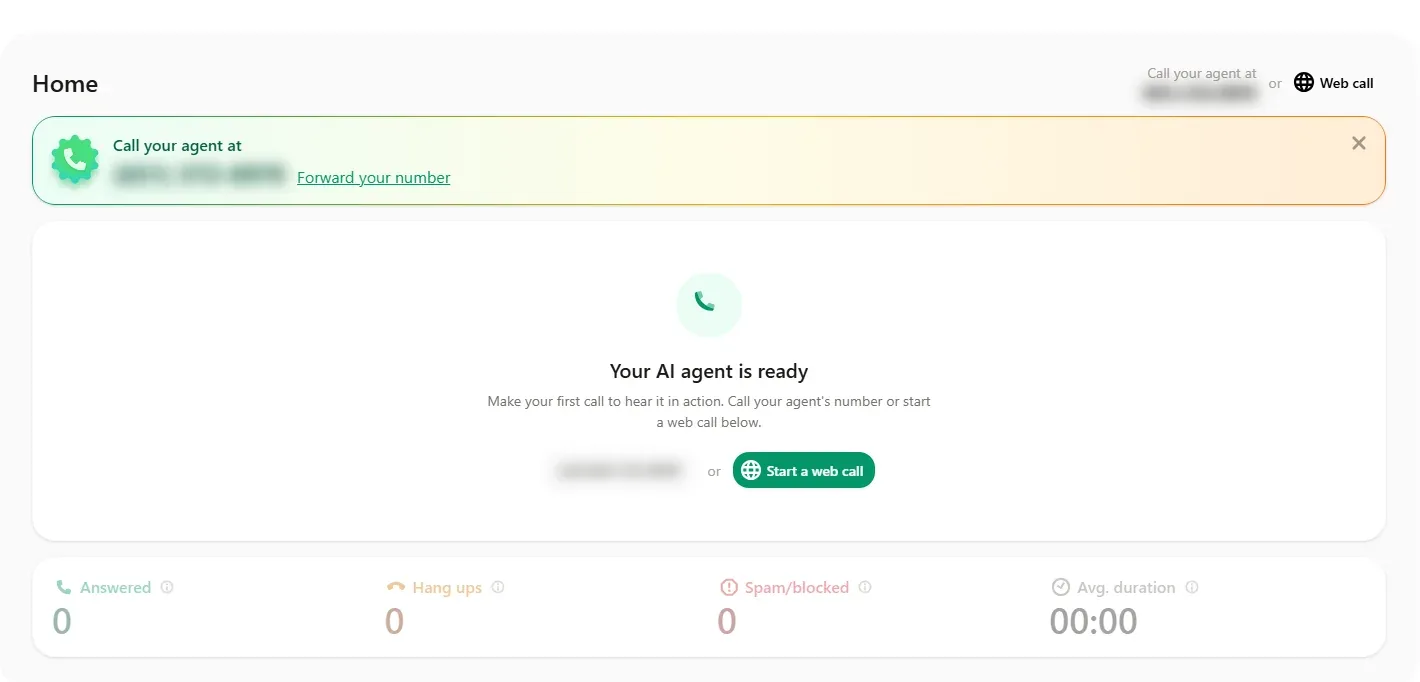
The four counters define the bill. Answered are “billable calls your agent handled”. Hang ups, “calls where the caller said nothing or hung up within 15 seconds”, are not billed. Spam/blocked, “calls filtered by spam protection, toll-free blocking, or your manual block list”, are not billed either. That is the rule our home page describes, written on the dashboard.
The agent: greeting, voice, personality
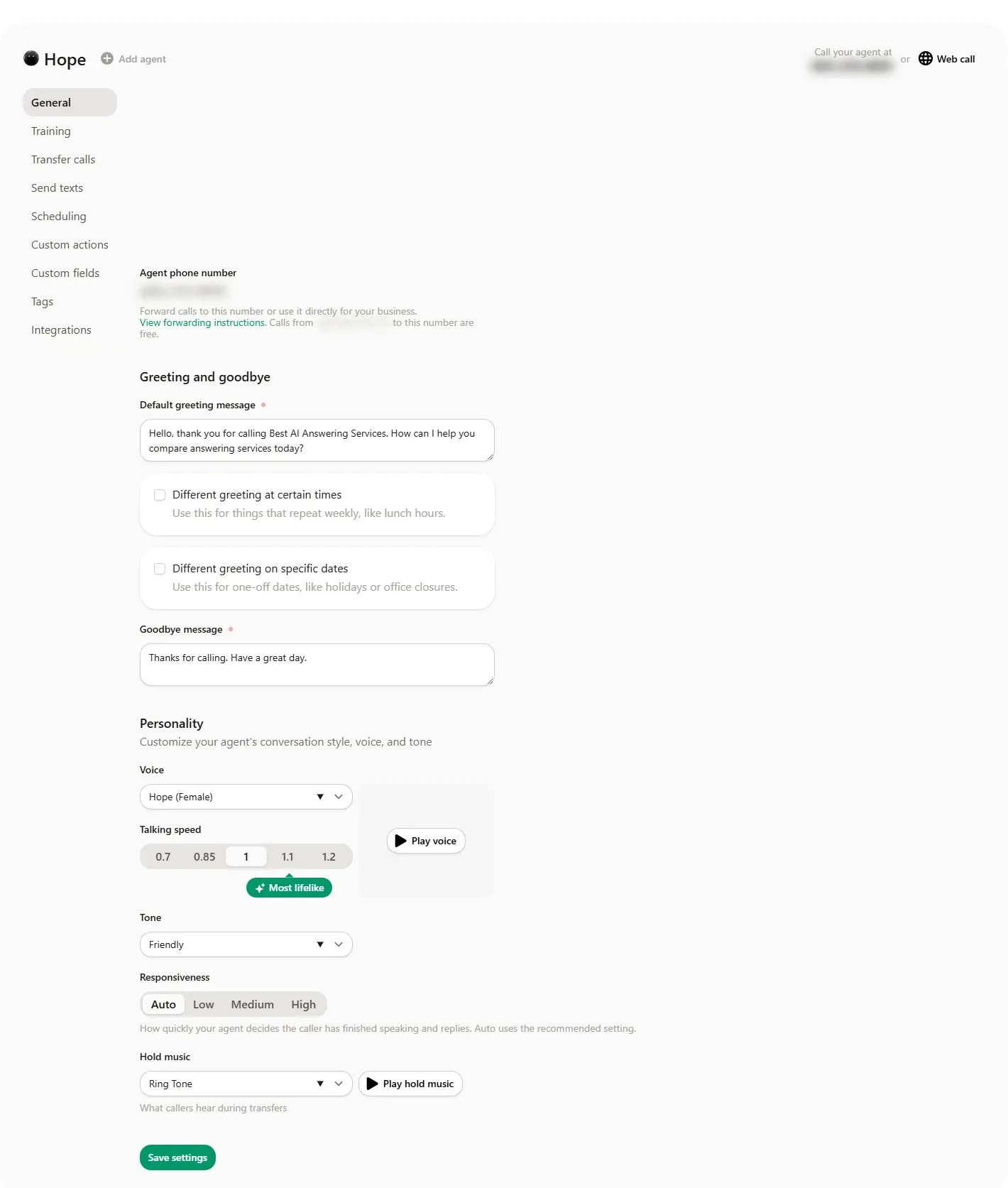
Everything the caller hears is on one page. The greeting can change at set times each week (“lunch hours”) and on specific dates (holidays, closures). Under Personality: the voice, a talking speed from 0.7 to 1.2 with 1 marked “most lifelike”, a tone (Friendly by default), a responsiveness setting (Auto, Low, Medium, High) that the page explains as “how quickly your agent decides the caller has finished speaking and replies”, and the hold music callers hear during transfers. The responsiveness control is worth noting: the common complaint about AI receptionists is talking over callers who pause (G2), and this is the knob for it. A side panel sets the agent's name and time zone.
What it knows and asks
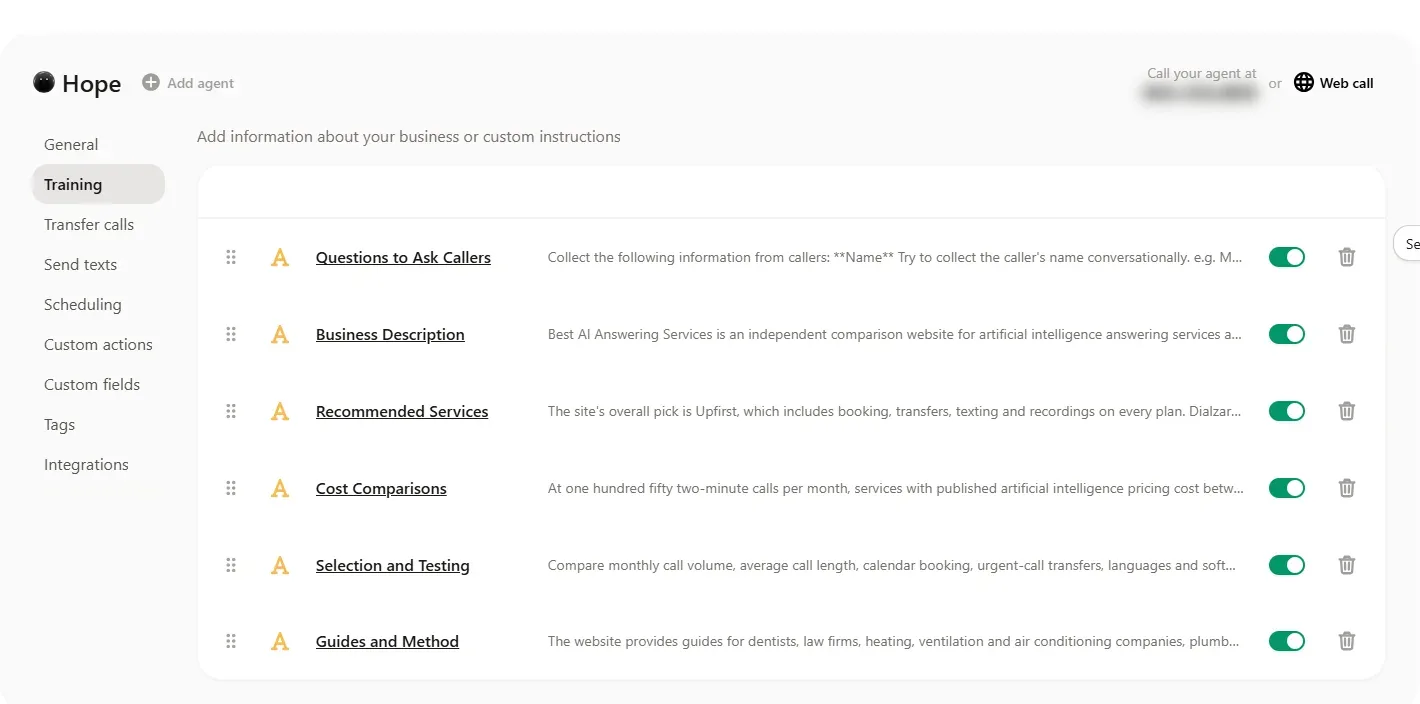
Knowledge is a list of named items, not one long prompt. Each can be switched off without deleting it, reordered by dragging, or replaced with your own text and custom instructions. The caller questions live here too, as an item the agent reads: collect the name conversationally, confirm the number they are calling from, ask for an email. Anything the agent was not given, it is supposed to hand off rather than invent; we will test that when we place calls.
Transfer rules
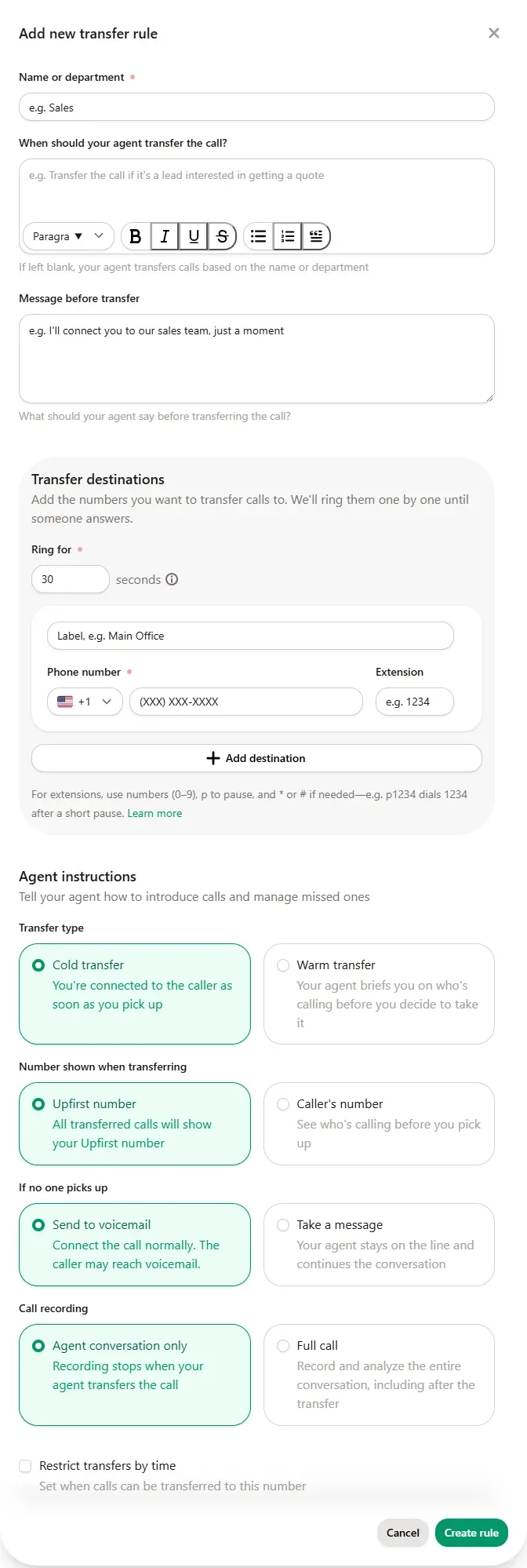
This is the most complete transfer setup we have seen in a small-business AI receptionist. A rule has a name or department, a plain-language condition (“transfer the call if it's a lead interested in getting a quote”; left blank, the agent transfers by name or department), a line the agent says first, and a list of destinations it rings one by one for a set number of seconds each, with extensions and pauses allowed. Then the choices that matter on a bad day: cold transfer (you are connected at once) or warm transfer (the agent briefs you before you decide to take it); whether your phone shows the Upfirst number or the caller's; send to voicemail or take a message when nobody picks up, in which case the agent stays on the line; recording of the agent's part only or the full call; and a schedule that restricts transfers to certain hours.
Texts, booking, tags, custom actions
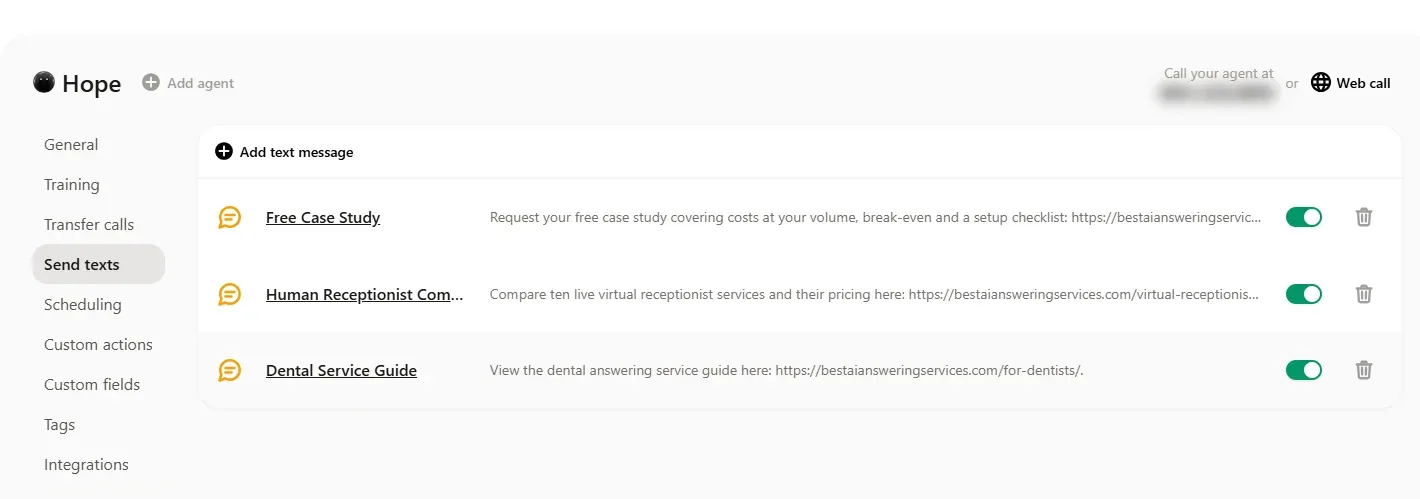
Texts. Each message is a named template the agent may send during a call when it fits: directions, a booking page, a form. Ours were links to three of our guides, which the agent chose itself from the site.
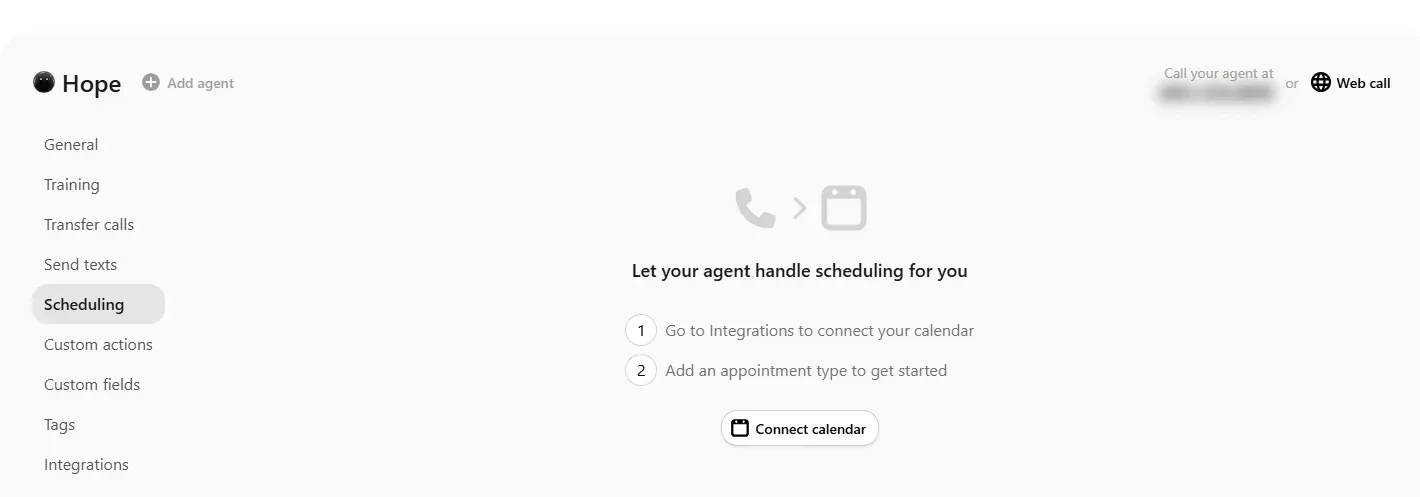
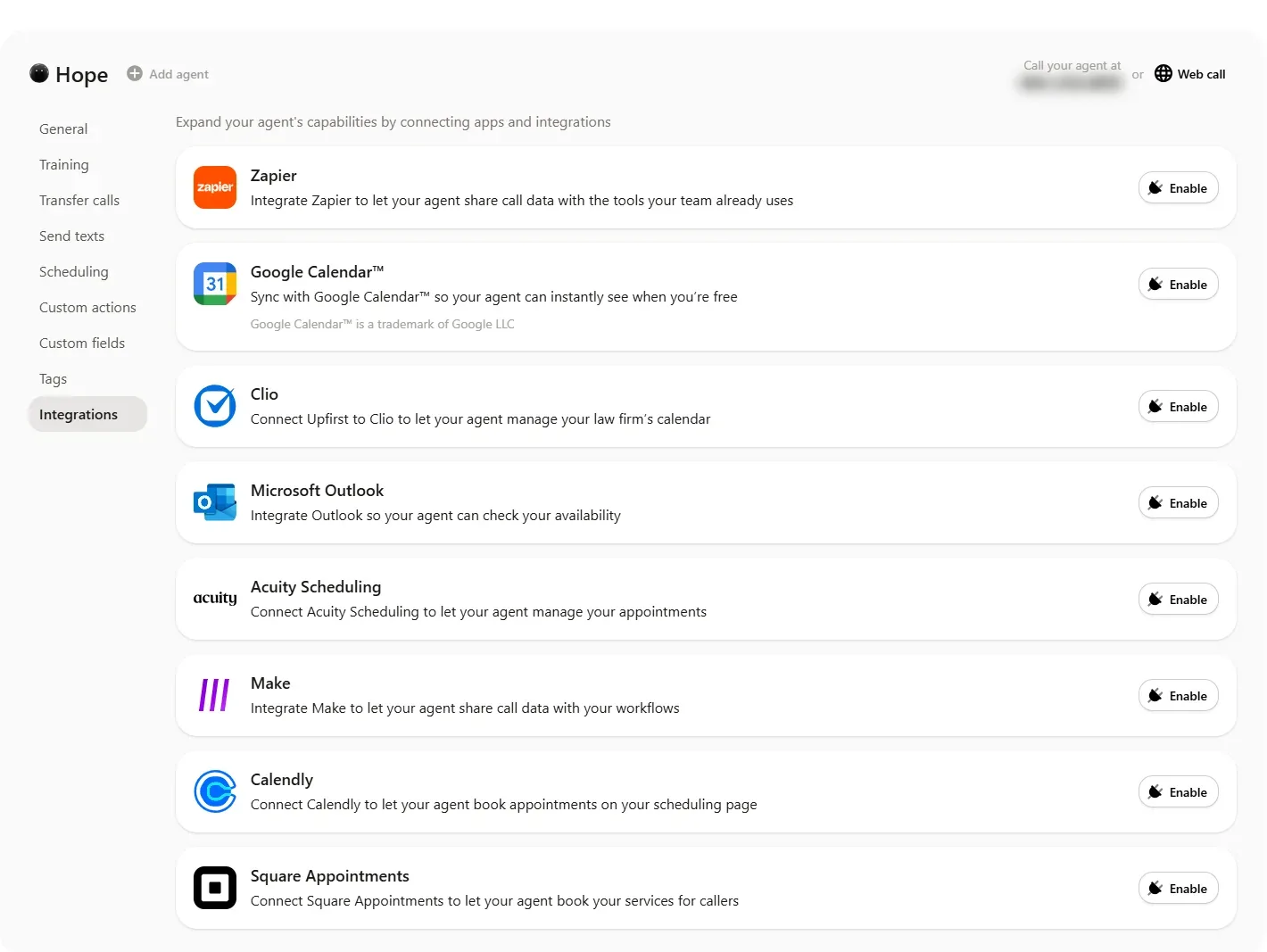
Booking. Scheduling is two steps: connect a calendar under Integrations, then define appointment types. The calendars on offer are Google Calendar, Outlook, Calendly, Acuity, Square Appointments and, for law firms, Clio; Zapier and Make cover everything else.
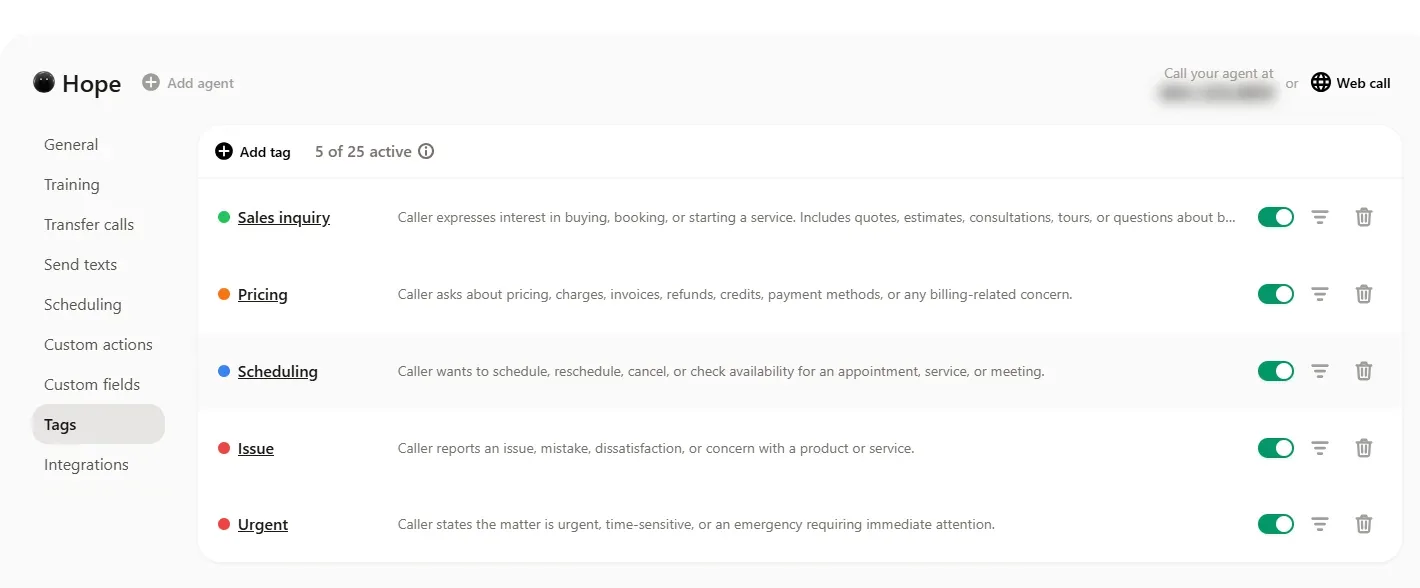
Tags and fields. The agent labels each call with up to 25 active tags you define in a sentence (five come preset: sales inquiry, pricing, scheduling, issue, urgent), and you can filter the call log by tag. Custom fields are facts to save on the contact (“if a caller shares this information, it will be saved to their contact, so your agent remembers it and won't ask again”) or on the call, each with an ID for Zapier.
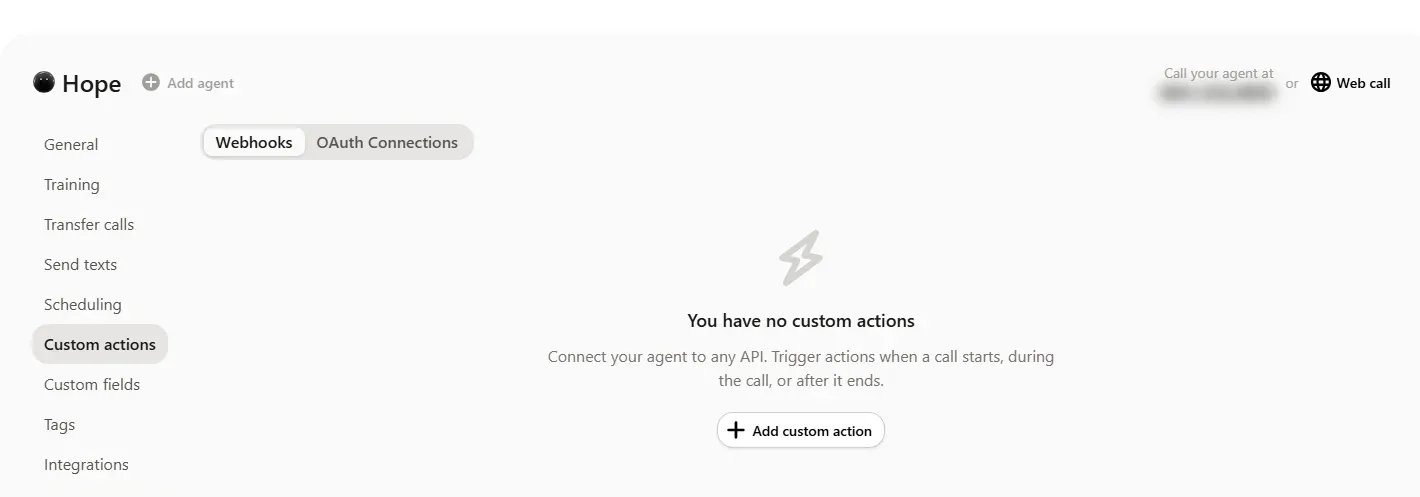
Custom actions. Webhooks and OAuth connections that fire when a call starts, during the call or after it ends, which is how an agency connects the agent to a CRM or a job system that has no ready integration.
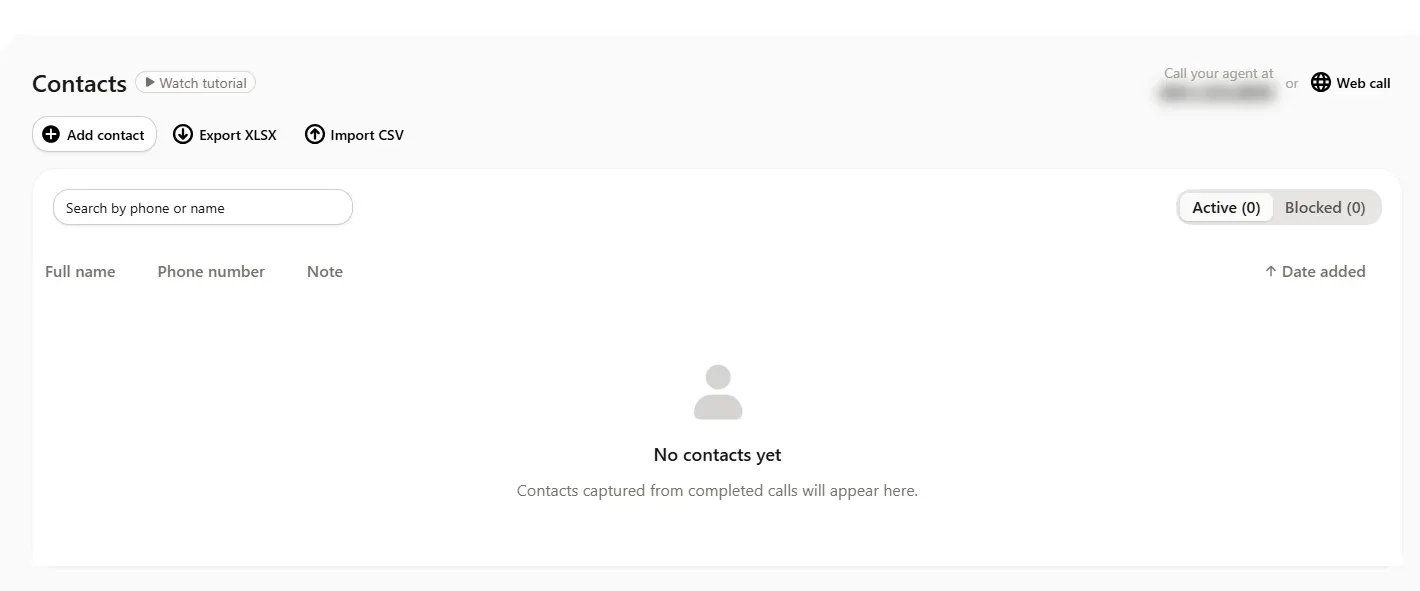
Contacts and team. Contacts captured from completed calls build a list you can export to XLSX or import from CSV, with a blocked list beside it. Team members can be invited as owners or members.
Connecting your number
The agent answers on its own number from the start. To put it on your existing line you forward calls to it, all of them or only the ones you miss. Upfirst's help center has the codes for US and Canadian carriers (Verizon *72 plus the number, cancel with *73; AT&T and T-Mobile **21* plus the number and #, cancel with #21#) and click-by-click steps for RingCentral, Google Voice, Vonage, Dialpad, Quo, Nextiva, 8x8, Grasshopper, Zoom Phone, Webex, GoTo Connect, Ooma Office, Microsoft Teams Phone and others, with one iPhone warning: turn off Live Voicemail first (Upfirst help center). The general forwarding rules are in our AI phone answering guide.
What it costs, from inside the app
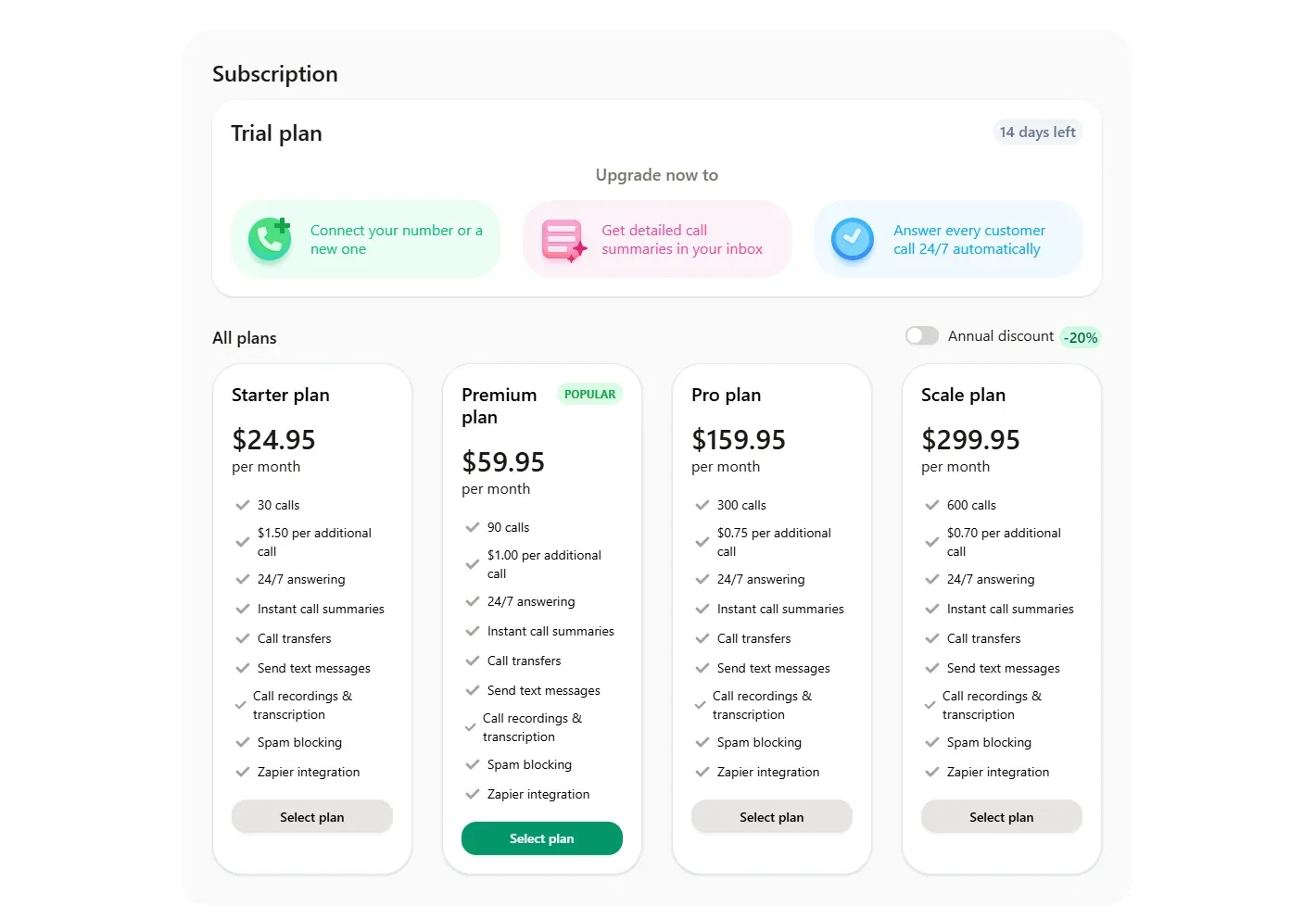
| Plan | Per month | Calls included | Extra calls | At 100 calls a month |
|---|---|---|---|---|
| Starter | $24.95 | 30 | $1.50 | $129.95 |
| Premium | $59.95 | 90 | $1.00 | $69.95 |
| Pro | $159.95 | 300 | $0.75 | $159.95 |
| Scale | $299.95 | 600 | $0.70 | $299.95 |
Every plan lists 24/7 answering, instant call summaries, call transfers, text messages, call recordings and transcription, spam blocking and Zapier. Annual billing takes 20% off. The trial badge in the app shows 14 days and 100 calls.
Two things the pricing page does not say and the app does: the trial includes 100 calls, not just 14 days, and the overage is set per plan, so a business at 100 calls a month pays less on Premium with ten extra calls ($69.95) than on Starter with seventy ($129.95). Our AI phone answering guide puts those figures next to eleven other services at one-minute and three-minute calls.
Who it's for
- Good fit: a service business with 30 to 600 calls a month that wants booking, transfers and texting without an onboarding call, and a bill that doesn't move when a caller talks for ten minutes.
- Check first: whether your calendar is on the list (Google, Outlook, Calendly, Acuity, Square, Clio); the recording acknowledgment, which makes you responsible for telling callers in the states that require it; and the Starter plan's 30 calls, which a busy shop uses in a week.
- Look elsewhere if you need a signed BAA on a small plan (Upfirst offers one on custom plans over 600 calls; RingCentral and AptaBook have one on entry plans), a person behind the AI (Smith.ai), or only your missed calls answered for $10 (KaiCalls). All are on our home page.
What we have not tested yet
Calls. The trial includes 100, and the ones we make will be scored on the things reviewers complain about: pauses, interruptions, background noise, a question it was not given, a transfer with nobody picking up, and a Spanish-speaking caller. Results will be added to this page.
Questions owners ask
Does Upfirst have a free trial?
Yes: 14 days and 100 calls, without a card. The trial badge inside the app shows both limits. Calls you make to the agent from your own number, and web calls from the dashboard, are free.
How long does Upfirst take to set up?
A few minutes. The setup wizard reads your website, writes the agent's knowledge, caller questions and text messages itself, then asks for a voice, a greeting and a number. From the training step to a live number took us a few minutes on 16 October 2026; reviewers on Capterra report going live in under 20 minutes.
Does Upfirst charge for spam calls?
No. The dashboard counts spam and blocked calls, and callers who say nothing or hang up within 15 seconds, separately from answered calls, and says they are not billed. Only answered calls count against the plan.
Can Upfirst transfer calls to a real person?
Yes, on every plan. A transfer rule names who gets the call and when, rings a list of numbers one by one, and chooses a cold transfer (connected at once) or a warm one (the agent briefs you first). If nobody answers, the call goes to voicemail or the agent takes a message, and transfers can be limited to certain hours.
Can I keep my own phone number with Upfirst?
Yes. The agent answers on an Upfirst number, and you forward your existing number to it, all calls or only missed calls, using your carrier's code or your phone system's settings. Upfirst's help center lists the steps for the major US carriers and most business phone systems.
What calendars does Upfirst book into?
Google Calendar, Microsoft Outlook, Calendly, Acuity Scheduling, Square Appointments and Clio, through the Integrations tab; Zapier and Make connect other tools. Booking needs a connected calendar and at least one appointment type.
Does Upfirst record calls?
Yes. Recordings and transcription are on every plan, and setup asks you to acknowledge that calls are recorded and that you are responsible for notifying callers where the law requires it. A transfer rule can record the agent's part only or the full call.
How much does Upfirst cost per month?
$24.95 for 30 calls, $59.95 for 90, $159.95 for 300 and $299.95 for 600, with extra calls at $1.50, $1.00, $0.75 and $0.70 respectively, and 20% off for annual billing, as shown in the app on 16 October 2026. At 100 calls a month the cheapest combination is Premium plus ten extra calls, $69.95.
Sources and method
- Upfirst app (app.upfirst.ai), our own trial account opened with this site's details on 16 October 2026; the setup wizard from step 2 onward and every settings screen read and captured the same day. We placed no calls and saved no transfer rules. Phone numbers, a name and an email address are blurred.
- Upfirst help center, “Forward all your calls to Upfirst”, read 16 October 2026; Upfirst pricing page (vendor-published), checked 30 September 2026
- G2 and Capterra reviews of Upfirst, read 30 September 2026